Shapes
Shape
-
class
glc.shapes.Shape(*args, **kwargs)¶ Represents a drawable shape.
Do not instantiate this. Use one of its subclasses instead.
The subclasses should mostly only have to define a
drawmethod, which takes in the context, and t/current time offset.A lot of the properties passed in can be lists/tuples with two or more values, which will animate from one to the other. Depending on the amount of values (and the property itself) there will be no interpolation, just immediate change from one value to another.
They can also be callables, which should take in a time
tand return a single value of the type it expects; so aColorfor fills, etc.The properties listed here are common to all shapes, but some do not work, as it wouldn’t make much sense.
-
speed_mult¶ float
Multiplier for the time
tapplied to this shape.
-
phase¶ float
The “local offset” for the time
tapplied to this shape.
-
translation_x¶ float
The horizontal offset for the position of the shape.
-
translation_y¶ float
The vertical offset for the position of the shape.
-
line_width¶ float
The width of the outlines for the shape.
-
line_cap¶ int
-
line_join¶ int
-
line_dash¶ iterable of floats
-
miter_limit¶ float
-
shake¶ float
How much the shape should shake.
-
fill¶ ColorColor the fill of this shape. Can also be a value like
NoneorFalseto indicate that no filling should be done.
-
stroke¶ ColorColor the outline of this shape. Can also be a value like
NoneorFalseto indicate that no stroking should be done.
-
ease¶ callable or string
Either a string, which denotes which easing function to pick from the defaults, or a callable, which should take in a time
tand return a single value. By default it inherits this attribute from theAnimationthat contains it.
-
loop¶ bool
Whether this shape should bounce back to its initial properties. By default it inherits this attribute from the
Animationthat contains it.
-
parent¶ ShapeSpecifies the parent for this shape. The position of it becomes relative to its parent, as is the rotation. Usually is
None.
-
add(item)¶ Adds a child shape to this shape’s list of children.
Shouldn’t be called normally, as this is called automatically when you set a shape as a parent of another, for example:
circle_a = render_list.circle(x=100, y=100, radius=50)
render_list.circle(x=100, y=0, radius=50, parent=circle_a)
Parameters: item ( Shape) – The shape to add as a child of this one.Returns: item – The added child. Return type: Shape
-
set_prop(**kwargs)¶ Sets properties for this shape.
Returns: self – For method chaining. Return type: Shape
-
set_ease(ease='sine')¶ Sets the easing function for this shape.
Parameters: ease (callable or str) – Either a string, which denotes which easing function to pick from the defaults, or a callable, which should take in a time tand return a single value. Defaults to"sine".Returns: self – For method chaining. Return type: Shape
-
Container
-
class
glc.shapes.Container(*args, **kwargs)¶ This is an empty shape, meant to have shapes added to.
The container can be rotated, translated and scaled, with all of its children being affected.
Create it using:
my_container = render_list.container(x=100, y=100, rotation=45, scale_x=2, scale_y=1)
# then add shapes to it
render_list.circle(x=0, y=0, radius=100, parent=my_container)
render_list.rect(x=0, y=0, w=50, h=50, parent=my_container)
-
x¶ float
Horizontal position of the container.
-
y¶ float
Vertical position of the container.
-
rotation¶ float
Angle of the container, in degrees.
-
scale_x¶ float
Horizontal scale factor of the container.
-
scale_y¶ float
Vertical scale factor of the container.
-
Arc Segment
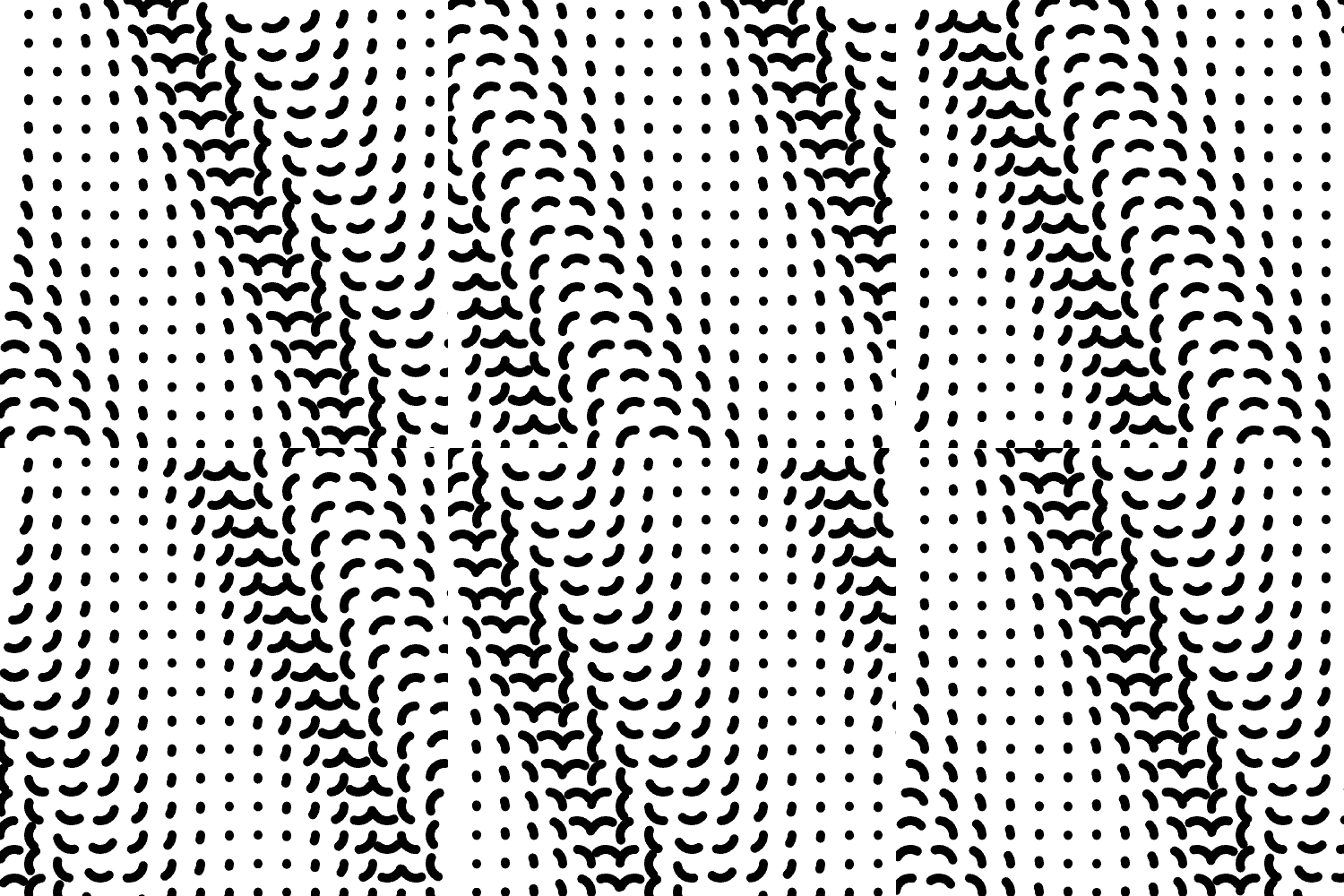
from glc import Gif
from math import pi

with Gif("arc_segment_example.gif", color_count=4) as a:
    l = a.render_list
    r = a.w // 30
    for x in range(r, a.w, r * 2):
        for y in range(r, a.h, r * 2):
            l.arcseg(
                x=x,
                y=y,
                radius=r,
                start=0,
                end=360,
                arc=90,
                line_width=10,
                phase=(x * a.w + y) * pi * 0.03
            )
-
class
glc.shapes.ArcSegment(*args, **kwargs)¶ Draws a portion of an arc around a (x, y) point with a radius and start/end angles.
The drawn segment will animate from the start angle to the end angle during the animation (and back to the start angle if the loop attribute on the animation is
True).Create it using:
render_list.arc_segment(x=100, y=100, radius=50, start=0, end=360, arc=20, rotation=0)
# or
render_list.arcseg(x=100, y=100, radius=50, start=0, end=360, arc=20, rotation=0)
-
x¶ float
Horizontal position of the arc.
-
y¶ float
Vertical position of the arc.
-
radius¶ float
Radius of the arc.
-
start¶ float
Start angle of the arc, in degrees.
-
end¶ float
End angle of the arc, in degrees.
-
arc¶ float
Angle of the arc to draw, in degrees.
-
rotation¶ float
Rotation of the arc, in degrees.
-
Arrow
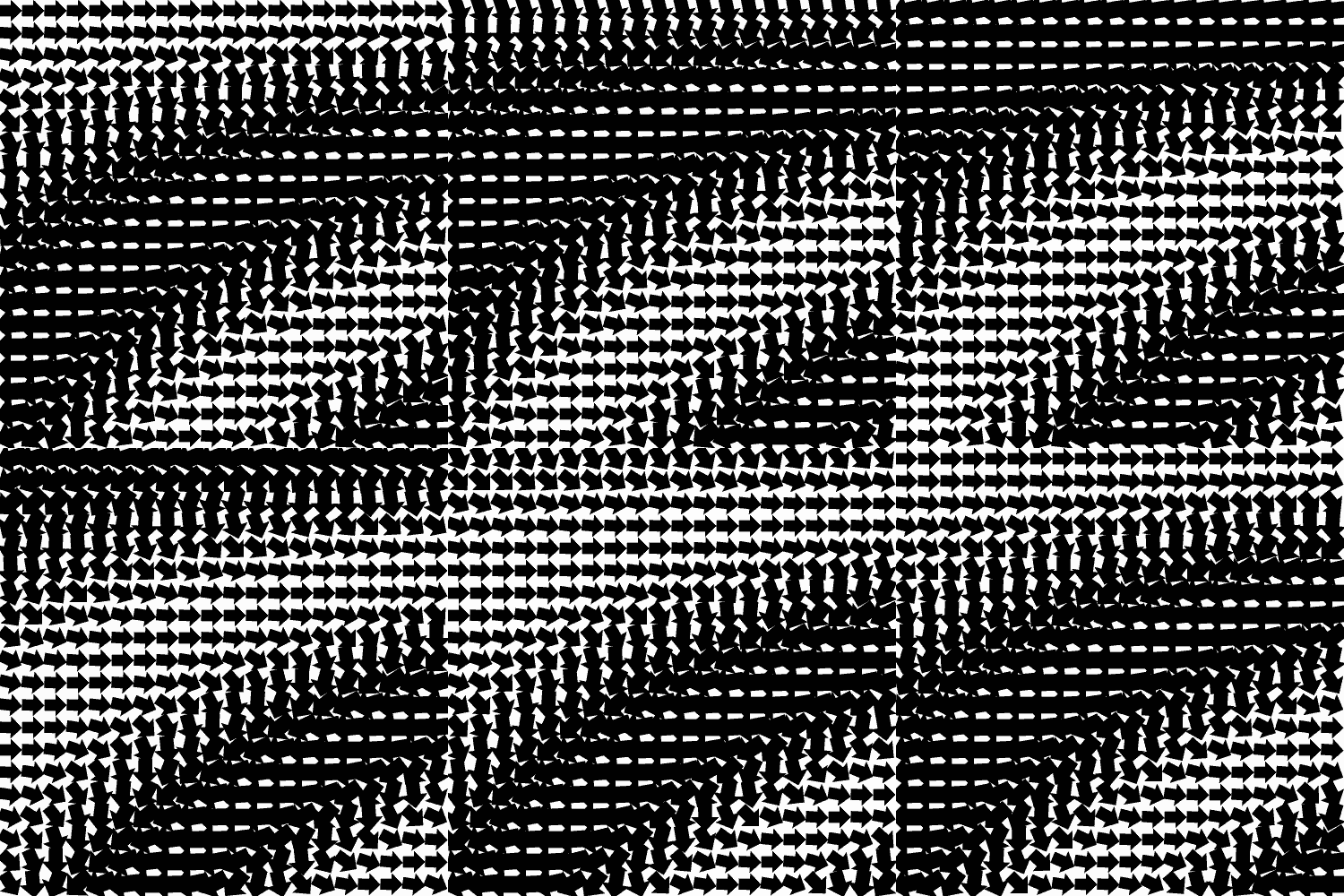
from glc import Gif

with Gif("arrow_example.gif", color_count=4) as a:
    l = a.render_list
    n = 20
    w, h = a.w // n, a.h // n
    for x in range(w // 2, a.w, w):
        for y in range(h // 2, a.h, h):
            l.arrow(
                x=x,
                y=y,
                w=[w, w * 1.5],
                h=[h, h * 1.5],
                rotation=[0, 180],
                phase=((x + 300) * y) / (a.w * a.h)
            )
-
class
glc.shapes.Arrow(*args, **kwargs)¶ Draws an arrow shape.
Create it using:
render_list.arrow(x=100, y=100, w=100, h=100, point_percent=0.5, shaft_percent=0.5, rotation=0.5)
-
x¶ float
Horizontal position of the center of the arrow.
-
y¶ float
Vertical position of the center of the arrow.
-
w¶ float
Width of the arrow.
-
h¶ float
Height of the arrow.
-
point_percent¶ float
How much the point of the arrow will take up from the width.
-
shaft_percent¶ float
How much the shaft of the arrow will take up from the width.
-
rotation¶ float
Angle of the arrow, in degrees.
-
Bézier Curve
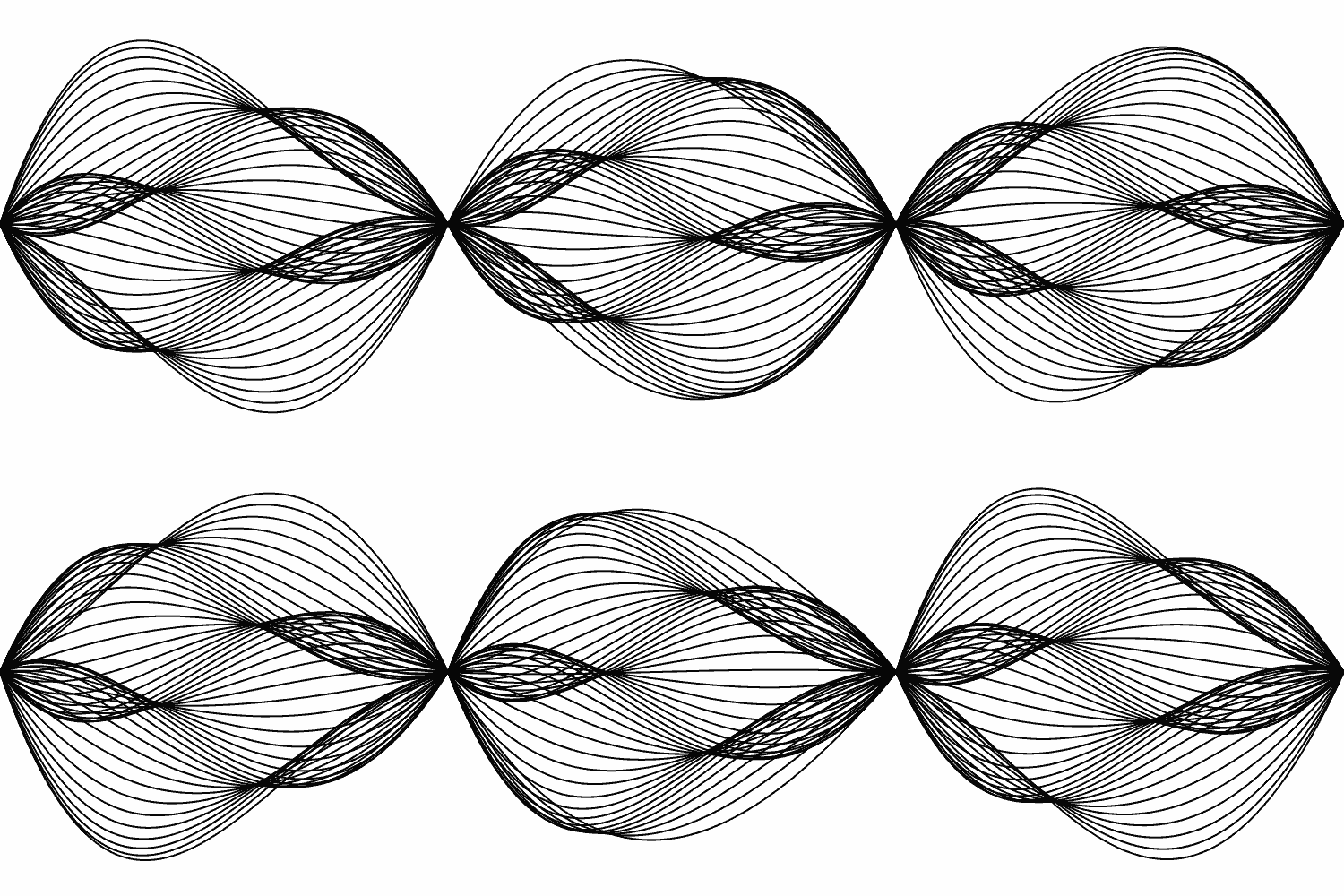
from glc import Gif

with Gif("bezier_curve_example.gif", color_count=4) as a:
    a.set_duration(2)
    l = a.render_list
    ys, s, h = 10, 10, 200
    for i in range(a.h // s):
        c = [ys + (i * s) - h, ys + (i * s) + h]
        l.bezier(
            x0=0, y0=a.h * 0.5,
            x1=a.w * 0.3, y1=c,
            x2=a.w * 0.6, y2=list(reversed(c)),
            x3=a.w, y3=a.h * 0.5,
            phase=(i * 2) / (a.h // s),
            line_width=2
        )
-
class
glc.shapes.BezierCurve(*args, **kwargs)¶ Draws a standard bézier curve using four points.
Create it using:
render_list.bezier_curve(x0=50, y0=10, x1=200, y1=100, x2=0, y2=100, x3=150, y3=10, show_points=False)
# or
render_list.bezier(x0=50, y0=10, x1=200, y1=100, x2=0, y2=100, x3=150, y3=10, show_points=False)
-
x0¶ float
Horizontal position of the first point.
-
y0¶ float
Vertical position of the first point.
-
x1¶ float
Horizontal position of the second point.
-
y1¶ float
Vertical position of the second point.
-
x2¶ float
Horizontal position of the third point.
-
y2¶ float
Vertical position of the third point.
-
x3¶ float
Horizontal position of the fourth point.
-
y3¶ float
Vertical position of the fourth point.
-
show_points¶ bool
Whether to show the points used to draw the curve or not. Defaults to
False.
-
Bézier Segment
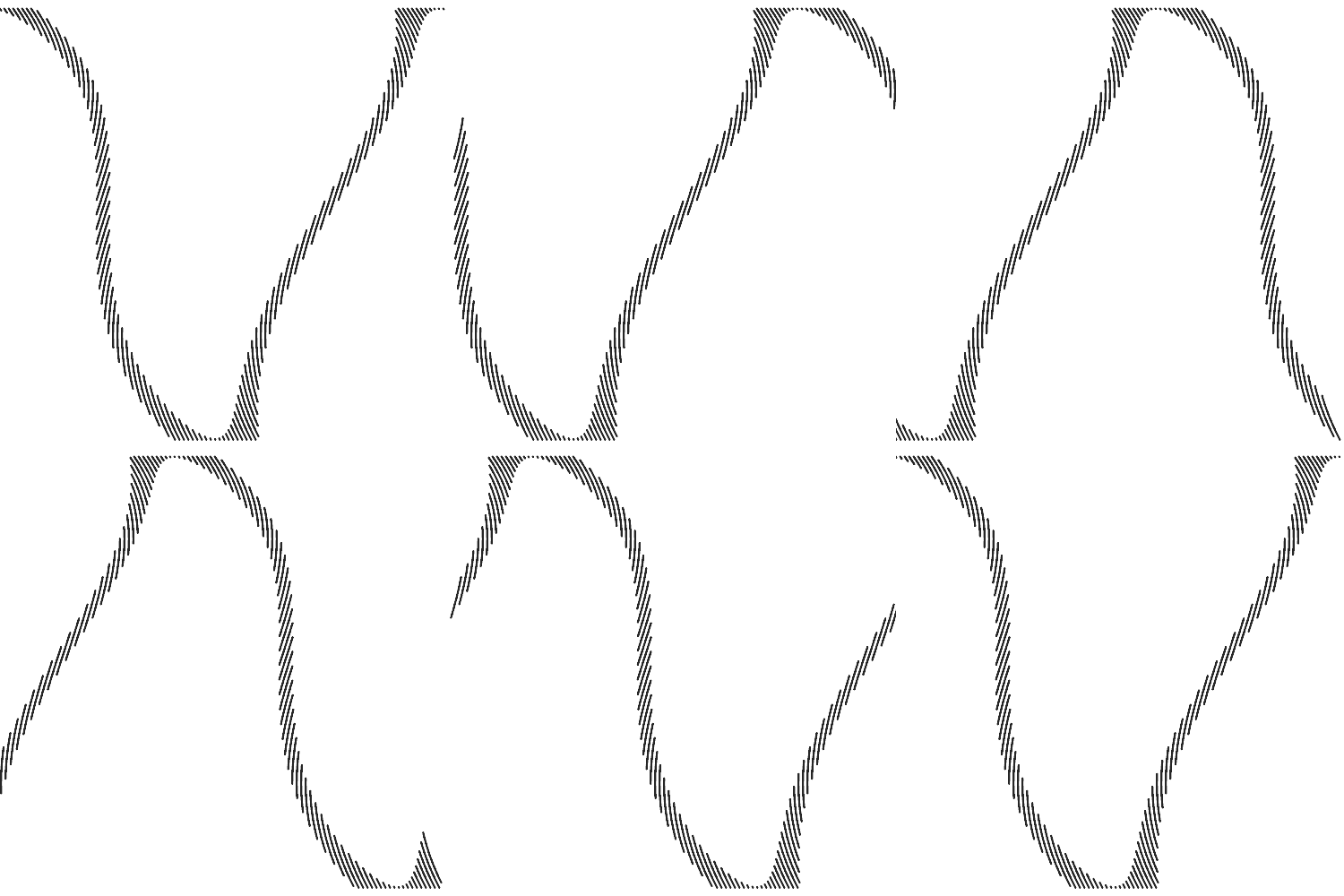
from glc import Gif
from glc.utils import lerp

with Gif("bezier_segment_example.gif", color_count=4) as a:
    a.set_duration(4)
    l = a.render_list
    start_x, start_y = -10, 10
    sw = 100
    s = 5
    end_y = a.h - start_y
    for i in range(a.w // s + 2):
        l.bezierseg(
            x0=start_x + (i * s), y0=start_y,
            x1=start_x + sw + (i * s), y1=lerp(0.3, start_y, end_y),
            x2=start_x - sw + (i * s), y2=lerp(0.6, start_y, end_y),
            x3=start_x + (i * s), y3=end_y,
            phase=i / (a.w // s),
            line_width=2
        )
-
class
glc.shapes.BezierSegment(*args, **kwargs)¶ Draws a portion of a standard bézier curve using four points.
The drawn segment will animate from the start of the curve to the end of it during the animation (and back to the start if the loop attribute on the animation is
True).Create it using:
render_list.bezier_segment(x0=50, y0=10, x1=200, y1=100, x2=0, y2=100, x3=150, y3=10, percent=0.5, show_points=False)
# or
render_list.bezierseg(x0=50, y0=10, x1=200, y1=100, x2=0, y2=100, x3=150, y3=10, percent=0.5, show_points=False)
-
x0¶ float
Horizontal position of the first point.
-
y0¶ float
Vertical position of the first point.
-
x1¶ float
Horizontal position of the second point.
-
y1¶ float
Vertical position of the second point.
-
x2¶ float
Horizontal position of the third point.
-
y2¶ float
Vertical position of the third point.
-
x3¶ float
Horizontal position of the fourth point.
-
y3¶ float
Vertical position of the fourth point.
-
percent¶ float
How much of the bézier curve should be drawn.
-
show_points¶ bool
Whether to show the points used to draw the curve or not. Defaults to
False.
-
Circle
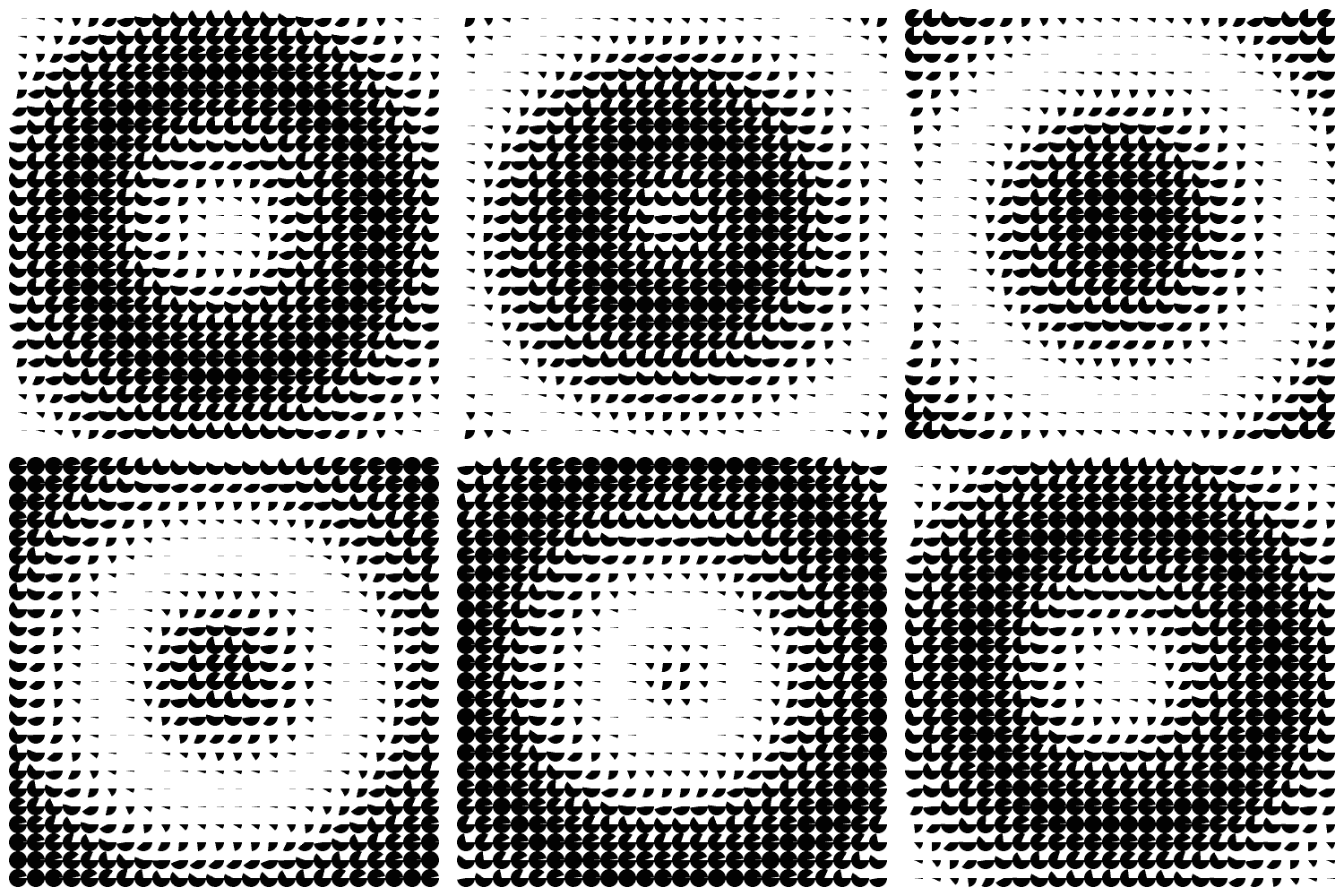
from math import sqrt
from glc import Gif

with Gif("circle_example.gif", color_count=4) as a:
    a.set_duration(2)
    l = a.render_list
    r = a.w // 50
    cx, cy = a.w * 0.5, a.h * 0.5
    for x in range(r * 2, a.w - r, r * 2):
        for y in range(r * 2, a.h - r, r * 2):
            dx = x - cx
            dy = y - cy
            dist = sqrt(dx * dx + dy * dy)
            l.circle(
                x=x, y=y,
                radius=r,
                phase=dist * 0.003,
                line_width=2,
                start=0, end=[0, 360],
                centered=True
            )
-
class
glc.shapes.Circle(*args, **kwargs)¶ Draws a circle.
This can also draw an arc, if you use the start and end angle properties to do so.
Create it using:
render_list.circle(x=100, y=100, radius=50, start=0, end=360, centered=False, rotation=0, scale_x=1, scale_y=1)
-
x¶ float
Horizontal position of the circle.
-
y¶ float
Vertical position of the circle.
-
radius¶ float
Radius of the circle.
-
start¶ float
Start angle of the arc, in degrees.
-
end¶ float
End angle of the arc, in degrees.
-
rotation¶ float
Rotation of the circle, in degrees.
-
centered¶ bool
Whether to start drawing at the center of the circle or not. Defaults to
False.
-
scale_x¶ float
Horizontal scale factor of the circle.
-
scale_y¶ float
Vertical scale factor of the circle.
-
Curve
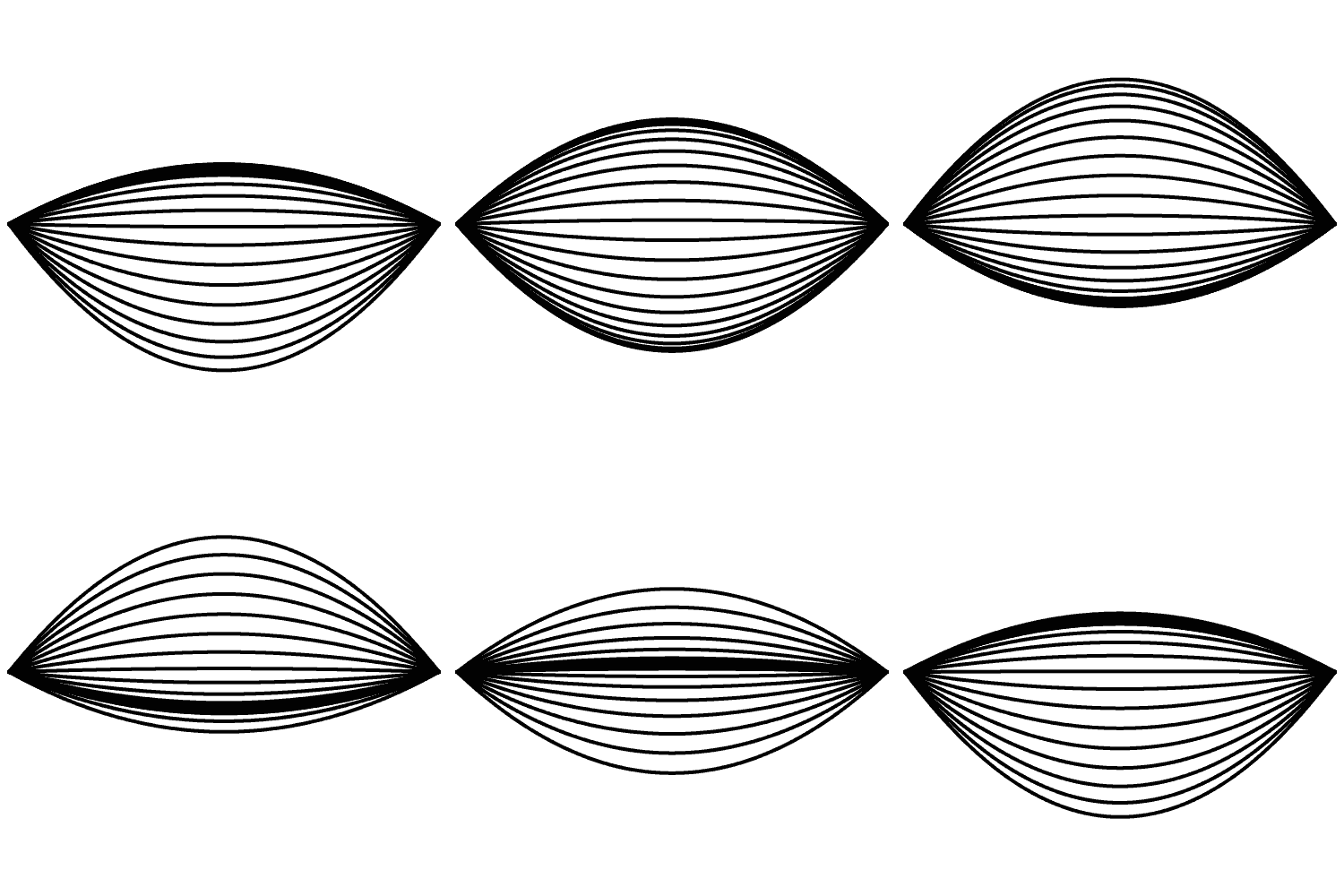
from glc import Gif
from glc.utils import lerp

with Gif("curve_example.gif", color_count=4) as a:
    a.set_duration(2)
    l = a.render_list
    wave = 100
    res = 20
    for y in range(res, a.h, res):
        l.curve(
            x0=10,
            y0=a.h * 0.5,
            x1=lerp(0.5, 10, a.h - 10),
            y1=[y + wave, y - wave],
            x2=lerp(1, 10, a.h - 10),
            y2=a.h * 0.5,
            line_width=4,
            phase=y / a.h
        )
-
class
glc.shapes.Curve(*args, **kwargs)¶ Draws a standard quadratic bézier curve using three points.
Create it using:
render_list.curve(x0=20, y0=10, x1=100, y1=200, x2=180, y2=10, show_points=False)
-
x0¶ float
Horizontal position of the first point.
-
y0¶ float
Vertical position of the first point.
-
x1¶ float
Horizontal position of the second point.
-
y1¶ float
Vertical position of the second point.
-
x2¶ float
Horizontal position of the third point.
-
y2¶ float
Vertical position of the third point.
-
show_points¶ bool
Whether to show the points used to draw the curve or not. Defaults to
False.
-
Curved Segment
TODO: add example here
-
class
glc.shapes.CurveSegment(*args, **kwargs)¶ Draws a portion of a standard quadratic bézier curve using three points.
The drawn segment will animate from the start of the curve to the end of it during the animation (and back to the start if the loop attribute on the animation is
True).Create it using:
render_list.curve_segment(x0=20, y0=20, x1=100, y1=200, x2=180, y2=20, percent=0.5, show_points=False)
# or
render_list.curveseg(x0=20, y0=20, x1=100, y1=200, x2=180, y2=20, percent=0.5, show_points=False)
-
x0¶ float
Horizontal position of the first point.
-
y0¶ float
Vertical position of the first point.
-
x1¶ float
Horizontal position of the second point.
-
y1¶ float
Vertical position of the second point.
-
x2¶ float
Horizontal position of the third point.
-
y2¶ float
Vertical position of the third point.
-
percent¶ float
How much of the curve should be drawn.
-
show_points¶ bool
Whether to show the points used to draw the curve or not. Defaults to
False.
-
Gear
TODO: add example here
-
class
glc.shapes.Gear(*args, **kwargs)¶ Draws a toothed gear.
Create it using:
render_list.gear(x=100, y=100, radius=50, hub=10, rotation=0, teeth=10)
-
x¶ float
Horizontal position of the gear.
-
y¶ float
Vertical position of the gear.
-
radius¶ float
Outer radius of the gear.
-
hub¶ float
Radius of the hub of the gear (inner radius).
-
teeth¶ int
Number of teeth on the gear.
-
tooth_height¶ float
Height of the gear’s teeth.
-
tooth_angle¶ float
Angle of the sides of the teeth. This should be in the [0-1] range.
-
rotation¶ float
Rotation of the gear, in degrees.
-
scale_x¶ float
Horizontal scale factor of the gear.
-
scale_y¶ float
Vertical scale factor of the gear.
-
Grid
TODO: add example here
Heart
TODO: add example here
-
class
glc.shapes.Heart(*args, **kwargs)¶ Draws a heart.
Create it using:
render_list.heart(x=100, y=100, w=50, h=50, scale_x=1, scale_y=1, rotation=0)
-
x¶ float
Horizontal position of the heart.
-
y¶ float
Vertical position of the heart.
-
w¶ float
Width of the heart.
-
h¶ float
Height of the heart.
-
scale_x¶ float
Horizontal scale factor of the heart.
-
scale_y¶ float
Vertical scale factor of the heart.
-
rotation¶ float
Angle of the heart, in degrees.
-
Image
TODO: add example here
-
class
glc.shapes.Image(*args, **kwargs)¶ Draws an image.
This uses the imageio library for loading images. See their docs for more info on what you can load.
Create it using:
render_list.image(img="path/to/image.png", x=100, y=100)
# or
render_list.img(img="path/to/image.png", x=100, y=100)

# you can pass an emoji character as the path
# which will load an emoji from your emoji_path
render_list.img(img="👌", x=100, y=100)

# you can pass a list of images
render_list.img(img=["1.png", "2.png", "3.png"], x=100, y=100)

# or a gif
render_list.img(img="numbers.gif", x=100, y=100)

# you can tint the image
render_list.img(img="image.png", x=100, y=100, tint=glc.Color("0xffff0000"))

# you can also control whether the image swapping should be eased
# of course this only has any effect if it's a multi-image container, such as gifs
render_list.img(img="image.gif", x=100, y=100, img_ease=False)
render_list.img(img="image.gif", x=100, y=100, img_ease=False, img_speed=2)

# the mode attribute controls how wrapping around happens
# clamp stops at the final frame
# wrap moves back to the first frame
render_list.img(img="image.gif", x=100, y=100, img_ease=False, mode="clamp")
render_list.img(img="image.gif", x=100, y=100, img_ease=False, mode="wrap")
-
img¶ The image or images to use. Can be a file path, http address, file object, raw bytes, emoji (unicode codepoint), or a list with any of those.
-
x¶ float
Horizontal position of the image.
-
y¶ float
Vertical position of the image.
-
w¶ float
Width of the image. If no value is specified, the original image width is used.
-
h¶ float
Height of the image. If no value is specified, the original image height is used.
-
scale_x¶ float
Horizontal scale factor of the image.
-
scale_y¶ float
Vertical scale factor of the image.
-
centered¶ bool
Whether the image should be drawn with (x, y) being at its center or at the top-left corner. Defaults to
True.
-
rotation¶ float
Angle of the image, in degrees.
-
alpha¶ float
Opacity of the image.
-
tint¶ glc.ColorColor to tint the image with.
-
tint_op¶ int [Cairo constant]
Operator to use when tinting. See http://cairographics.org/documentation/pycairo/3/reference/constants.html#cairo-operator Defaults to
cairo.OPERATOR_HSL_COLOR.
-
mode¶ string
The image swapping wrapping mode. Can only be of the following:
- clamp
- wrap
-
img_ease¶ bool
Whether the image swapping should be eased with the rest of the animation or not. Defaults to
True.
-
img_speed¶ float
Image swapping speed multiplier.
-
Isometric Box
TODO: add example here
-
class
glc.shapes.IsoBox(*args, **kwargs)¶ Draws an isometric box.
Create it using:
render_list.isobox(
    x=100, y=100,
    size=60, h=40,
    color_left=glc.Color("0xff999999"),
    color_right=glc.Color("0xffcccccc"),
    color_top=glc.Color("0xffeeeeee")
)
-
x¶ float
Horizontal position of the isometric box.
-
y¶ float
Vertical position of the isometric box.
-
size¶ float
Size of the isometric box.
-
h¶ float
Height of the isometric box.
-
color_left¶ glc.ColorColor of the left side of the isometric box.
-
color_right¶ glc.ColorColor of the right side of the isometric box.
-
color_top¶ glc.ColorColor of the top of the isometric box.
-
scale_x¶ float
Horizontal scale factor of the isometric box.
-
scale_y¶ float
Vertical scale factor of the isometric box.
-
Isometric Tube
TODO: add example here
-
class
glc.shapes.IsoTube(*args, **kwargs)¶ Draws an isometric tube.
Create it using:
render_list.isotube(
    x=100, y=100,
    radius=60, h=40,
    color_left=glc.Color("0xff999999"),
    color_right=glc.Color("0xffcccccc"),
    color_top=glc.Color("0xffeeeeee")
)
-
x¶ float
Horizontal position of the isometric tube.
-
y¶ float
Vertical position of the isometric tube.
-
radius¶ float
Radius of the isometric tube.
-
h¶ float
Height of the isometric tube.
-
color_left¶ glc.ColorColor of the left side of the isometric tube.
-
color_right¶ glc.ColorColor of the right side of the isometric tube.
-
color_top¶ glc.ColorColor of the top of the isometric tube.
-
scale_x¶ float
Horizontal scale factor of the isometric tube.
-
scale_y¶ float
Vertical scale factor of the isometric tube.
-
Line
TODO: add example here
-
class
glc.shapes.Line(*args, **kwargs)¶ Draws a line between two points.
Create it using:
render_list.line(x0=0, y0=0, x1=100, y1=100)
-
x0¶ float
Horizontal position of the first point.
-
y0¶ float
Vertical position of the first point.
-
x1¶ float
Horizontal position of the second point.
-
y1¶ float
Vertical position of the second point.
-
Oval
TODO: add example here
-
class
glc.shapes.Oval(*args, **kwargs)¶ Draws an oval.
This can also draw an ovoidal arc, if you use the start and end angle properties to do so.
Create it using:
render_list.oval(x=100, y=100, rx=100, ry=50)
-
x¶ float
Horizontal position of the oval.
-
y¶ float
Vertical position of the oval.
-
rx¶ float
Horizontal radius of the oval.
-
ry¶ float
Vertical radius of the oval.
-
start¶ float
Start angle of the arc, in degrees.
-
end¶ float
End angle of the arc, in degrees.
-
centered¶ bool
Whether the oval should be centered on the (x, y) point or not. Defaults to
False.
-
rotation¶ float
Angle of the oval, in degrees.
-
Path
TODO: add example here
-
class
glc.shapes.Path(*args, **kwargs)¶ Draws lines that pass between the specified points.
Create it using:
render_list.path(path=[0, 0, 100, 100, -100, 100, -50, 50, 0, 50])
-
path¶ list of floats
Flat list of points, like this: [0, 0, 100, 100] (two points). Can also be a nested list, in which case the points will be interpolated. If the two lists are not the same size, excess points will be ignored.
-
start_percent¶ float
Where drawing of the path will start at.
-
end_percent¶ float
Where drawing of the path will end at.
-
show_points¶ bool
Whether to show the points used to draw the path or not. Defaults to
False.
-
Polygon
TODO: add example here
-
class
glc.shapes.Poly(*args, **kwargs)¶ Draws a polygon.
Create it using:
render_list.poly(x=100, y=100, rotation=0, radius=50, sides=5)
-
x¶ float
Horizontal position of the polygon.
-
y¶ float
Vertical position of the polygon.
-
radius¶ float
Radius of the polygon.
-
sides¶ int
Number of sides of the polygon.
-
rotation¶ float
Angle of the polygon, in degrees.
-
Ray
TODO: add example here
-
class
glc.shapes.Ray(*args, **kwargs)¶ Draws a ray.
This does the same thing as
glc.shapes.Line, but the line is specified using a starting point and an angle + length, and not explicit points.Create it using:
render_list.ray(x=100, y=100, angle=0, length=100)
-
x¶ float
Horizontal position of the ray.
-
y¶ float
Vertical position of the ray.
-
angle¶ float
Angle of the ray, in degrees.
-
length¶ float
Length of the ray.
-
Ray Segment
TODO: add example here
-
class
glc.shapes.RaySegment(*args, **kwargs)¶ Draws part of a ray.
This does the same thing as
glc.shapes.Segment, but the line is specified using a starting point and an angle + length, and not explicit points.Create it using:
render_list.ray_segment(x=100, y=100, angle=0, length=100, segment_length=50)
# or
render_list.rayseg(x=100, y=100, angle=0, length=100, segment_length=50)
-
x¶ float
Horizontal position of the ray.
-
y¶ float
Vertical position of the ray.
-
length¶ float
Length of the ray.
-
angle¶ float
Angle of the ray.
-
segment_length¶ float
Portion of the ray that will be drawn.
-
Rectangle
TODO: add example here
-
class
glc.shapes.Rect(*args, **kwargs)¶ Draws a rectangle.
Create it using:
render_list.rect(x=100, y=100, w=100, h=100)
-
x¶ float
Horizontal position of the rectangle.
-
y¶ float
Vertical position of the rectangle.
-
w¶ float
Width of the rectangle.
-
h¶ float
Height of the rectangle.
-
rotation¶ float
Angle of the rectangle, in degrees.
-
centered¶ bool
Whether the rectangle should be drawn from the center or the top left corner. Defaults to
True.
-
scale_x¶ float
Horizontal scale factor of the rectangle.
-
scale_y¶ float
Vertical scale factor of the rectangle.
-
Round Rectangle
TODO: add example here
-
class
glc.shapes.RoundRect(*args, **kwargs)¶ Draws a rounded rectangle.
You can either specify an specific radius for each corner, or just an overall radius for all of them.
If a radius for some corner is not specified, it falls back to the overall radius.
Create it using:
render_list.round_rect(x=100, y=100, w=100, h=100, radius=10)
-
x¶ float
Horizontal position of the rectangle.
-
y¶ float
Vertical position of the rectangle.
-
w¶ float
Width of the rectangle.
-
h¶ float
Height of the rectangle.
-
radius¶ float
Overall radius of the corners.
-
bottom_left¶ float
Radius of the bottom left corner.
-
bottom_right¶ float
Radius of the bottom right corner.
-
top_left¶ float
Radius of the bottom left corner.
-
top_right¶ float
Radius of the bottom right corner.
-
rotation¶ float
Angle of the rectangle, in degrees.
-
centered¶ bool
Whether the rectangle should be drawn from the center or the top left corner. Defaults to
True.
-
scale_x¶ float
Horizontal scale factor of the rectangle.
-
scale_y¶ float
Vertical scale factor of the rectangle.
-
Segment
TODO: add example here
-
class
glc.shapes.Segment(*args, **kwargs)¶ Draws a portion of a line.
The drawn segment will animate from the start of the line to the end of it during the animation (and back to the start if the loop attribute on the animation is
True).Create it using:
render_list.segment(x0=0, y0=0, x1=100, y1=100, length=50, show_points=False)
-
x0¶ float
Horizontal position of the first point.
-
y0¶ float
Vertical position of the first point.
-
x1¶ float
Horizontal position of the second point.
-
y1¶ float
Vertical position of the second point.
-
length¶ float
Length of the segment drawn.
-
show_points¶ bool
Whether to show the points used to draw the curve or not. Defaults to
False.
-
Spiral
TODO: add example here
-
class
glc.shapes.Spiral(*args, **kwargs)¶ Draws a spiral.
Create it using:
render_list.spiral(x=100, y=100, turns=6, inner_radius=10, outer_radius=100)
-
x¶ float
Horizontal position of the spiral.
-
y¶ float
Vertical position of the spiral.
-
inner_radius¶ float
Inner radius of the spiral.
-
outer_radius¶ float
Outer radius of the spiral.
-
turns¶ float
Number of turns in the spiral (negative values make it turn in the other direction).
-
res¶ float
The spiral is drawn as a series of tiny line segments. This is the angle of each of those segments, in degrees.
-
rotation¶ float
Angle of the spiral, in degrees).
-
scale_x¶ float
Horizontal scale factor of the spiral.
-
scale_y¶ float
Vertical scale factor of the spiral.
-
Star
TODO: add example here
-
class
glc.shapes.Star(*args, **kwargs)¶ Draws a star.
Create it using:
render_list.star(x=100, y=100, inner_radius=25, outer_radius=50, points=5)
-
x¶ float
Horizontal position of the star.
-
y¶ float
Vertical position of the star.
-
inner_radius¶ float
Inner radius of the star.
-
outer_radius¶ float
Outer radius of the star.
-
points¶ int
Number of points in the star.
-
rotation¶ float
Angle of the star, in degrees.
-
scale_x¶ float
Horizontal scale factor of the star.
-
scale_y¶ float
Vertical scale factor of the star.
-